TL;DR
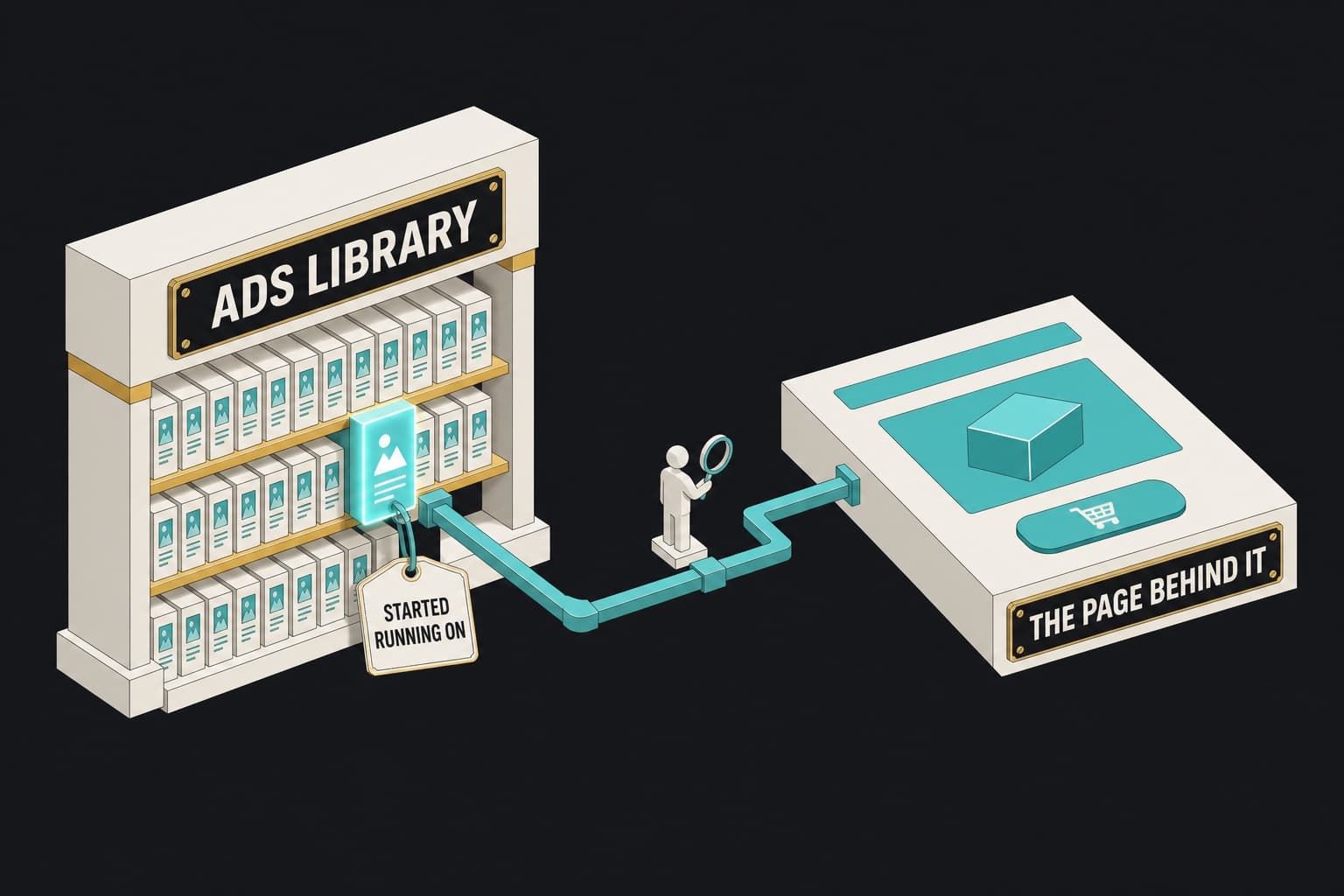
The Facebook Ads Library is a free, public archive of every active ad on Meta’s platforms. For competitor research, search by advertiser, set the country first, and read “Started running on” dates as a proxy for spend: the longer an ad has run, the more likely it’s working. Then study the landing page behind each long-running ad, because the library shows the ad, not the funnel.
The Facebook Ads Library is the best free research tool in paid media, and most media buyers use a fraction of it. They type a brand name, scroll a wall of creative, screenshot a few, and end up with a folder of images and no idea what to build.
That’s the gap this guide closes. Not “what is the Ad Library,” you’ve used it. The workflow: how to search it properly, how to read the three signals it gives you about what’s actually working, how to build a swipe file that leads to a page instead of a mood board, and what to do about the half of competitor research the library can’t do at all.
Key Takeaways
- The Facebook Ads Library is free, needs no account, and covers active ads across Facebook, Instagram, Messenger, Audience Network, and Threads. It will not show you spend, performance, or targeting for commercial ads.
- “Started running on” is the only free proxy for spend. An ad live for 90+ days behind the same page is being paid for by results.
- The “N ads use this creative and text” count tells you how many variants a brand is testing on one concept, which is a testing-budget signal.
- For ads delivered in the EU, the library shows reach estimates and audience parameters. Set the country filter to an EU market to see them.
- The library ends at the ad. The offer, price, guarantee, and buy box live on the landing page, and nothing in the library archives those.
What the Facebook Ads Library is (and what it isn’t)
The Facebook Ads Library is Meta’s public archive of active ads. It exists because of ad transparency regulation, not because Meta wanted to give media buyers a research tool, and that shows. The interface is built for a journalist checking who paid for a political ad, so it’s clumsy for someone trying to catalogue a competitor’s hooks.
It’s free. It requires no login. It covers every active ad across Facebook, Instagram, Messenger, Audience Network, and Threads. And for ads about social issues, elections, or politics, it keeps a seven-year archive with spend ranges and impression data. Meta documents the tool and its research API in the Transparency Center.
What it will not tell you
Set expectations before you open it, because the limits shape the workflow:
- No spend data for commercial ads. Only political and issue ads show spend ranges.
- No performance data. No CTR, no CPA, no ROAS, no conversion signal of any kind.
- No targeting data outside the EU. You can’t see who an ad is aimed at.
- No landing page archive. The library shows the destination link on the ad right now. When the brand swaps the page, the old one is gone.
- Commercial ads disappear when paused outside the EU. If it’s not running, it’s not in the library.
That last point matters more than it looks. The library is a snapshot of what’s live, not a history of what was tried. Everything you learn from it is about ads that are currently being paid for.
How to search the Facebook Ad Library
The search flow, in the order that avoids empty results:
- Open the library and set the country. The dropdown at the top. Default is often the country you’re browsing from, which is wrong if your competitor runs in a different market.
- Set the ad category to “All ads.” The other categories (issues, elections, politics; housing; employment; credit) exclude commercial ads.
- Choose your search mode. Type a keyword to search ad copy across every advertiser, or type a brand name and select the advertiser Page from the dropdown.
- Apply filters. Language, platform (Facebook, Instagram, Audience Network, Messenger, Threads), media type (image, video, meme, no image or video), active status, and start date.
- Sort and scan. Open “See ad details” on any card for the full creative, the destination URL, and the variant count.
Keyword search vs advertiser search
The library supports both, and buyers confuse them. Keyword search matches text in the ad copy and advertiser names across every active ad in the selected country. It’s broad and noisy: search “collagen” and you’ll get supplements, skincare, and a pet food brand. It’s the right mode for discovery, when you want to see who is running ads in a category.
Advertiser search is exact. Type the brand, pick its Page from the dropdown, and you get only that Page’s active ads. It’s the right mode for monitoring a shortlist. If a search comes back empty for a brand you know is advertising, the usual cause is a typo in the Page name, the wrong country, or the brand advertising under a different Page (a sub-brand, a regional Page, or an agency-run Page).
Set the country filter first
Creative differs by market. A US brand running in the UK often runs different hooks, different offers, and different pages. The library shows ads delivered in the selected country, so a brand that looks dormant in one market can have 60 active ads in another. Check the two or three markets your competitor actually sells in before concluding anything.
The category filter and the political exception
“All ads” is the setting for commercial research. The special categories exist because those ads carry extra disclosure requirements and a longer archive. If you’re researching a DTC brand, you’ll never need them. If you’re wondering why a political ad has spend data and your competitor’s doesn’t, that’s why.
The EU transparency exception
Under the Digital Services Act, ads delivered in the EU carry an extra “EU transparency” panel: estimated reach, audience age and gender breakdowns, and the targeting parameters used. Inactive EU ads are also retained for a year. If your competitor advertises in any EU market, set the country to that market and open the ad details. It’s the only place in the tool where you can see reach for a commercial ad, and it’s often the fastest way to work out which concept a brand is scaling.
Reading the signal: which ads are actually working
The library gives you no performance data, so you infer it. Three signals do most of the work.
“Started running on” is your proxy for spend
Every ad card shows the date it started running. This is the single most useful field in the library, because a brand doesn’t keep paying for an ad that isn’t working. An ad that started running four months ago and is still live has survived four months of a media buyer’s kill decisions.
The read is straightforward. Use the start date filter to show only ads that began running 90 or more days ago. What’s left is the set the brand has decided is worth keeping. Ads that started this week are tests. Most of them will be gone in ten days.
There are exceptions. Some brands leave low-budget evergreen ads running indefinitely, a long start date on a retargeting ad means less than one on a prospecting ad, and under a campaign-level budget (CBO) an ad can sit active for months while the delivery system gives it almost no spend, because nobody bothered to pause it. But as a first filter, longevity is the closest thing to a spend signal you’ll get for free.
Variant volume as a testing-budget signal
Open ad details and look for “N ads use this creative and text.” That count is the number of ad instances sharing one creative. A brand that has duplicated one ad into 14 ad sets or campaigns is investing in that concept. A brand with one instance of each creative is spraying.
Combine this with start date. A concept with many variants and a long start date is a proven winner the brand is still scaling. That’s the ad whose landing page you want to study first.
Same creative across multiple placements
The platform icons on each card show where the ad is delivered. Icons for every platform are the Advantage+ placements default, so on their own they tell you little. Creative confined to one platform is the deliberate choice worth noting: the brand either built it for that placement (a vertical Reels cut, say) or is isolating it for a test.
What a graveyard of three-day ads tells you
Scroll to the bottom of a competitor’s list and you’ll often find a cluster of ads that all started in the last week. That’s the brand’s current test batch. Watch which ones are still live in two weeks. The survivors are the next generation of winners, and you’ll see them before the brand has finished scaling them.
A worked example. Say you’re a media buyer for a mid-size supplement brand and you’re researching a competitor called, for the sake of the exercise, Brightline. You pull their US ads and find 41 active. Sorted by start date, six have been running for more than 90 days. Four of those six share the same hook, a “3 signs your gut is off” angle, with 11 variants between them. The other 35 ads started in the last three weeks and cover five different angles.
Your read: Brightline’s winning concept is the “3 signs” listicle hook, they’re still scaling it, and they’re testing five new angles that mostly won’t survive. You now know which one of their pages to study, and it isn’t the one behind the newest ad.
Turn that shortlist into a page. See the exact pages behind any brand’s live Meta ads, matched to the ads pointing at them. Research only is $49/month.
Building a swipe file that’s actually useful
A folder of screenshots is not a swipe file. A swipe file is a database you can query when you’re about to brief a creative or build a page.
Organize by hook, offer, and format, not by brand
Brand folders feel natural and are useless when you need them. When you’re writing an ad, you’re not asking “what did Brightline do,” you’re asking “what hooks work for problem-aware supplement audiences.” Structure the file around the question you’ll ask later.
| Field | What to log |
|---|---|
| Hook | The first line or first three seconds, verbatim |
| Hook pattern | Which of the four patterns below it uses |
| Offer | Discount, bundle, subscription, free gift, guarantee |
| Format | Static, UGC video, carousel, founder-to-camera, before/after |
| Started running on | The date from the card |
| Variants | The “N ads use this creative” count |
| Destination | The landing page URL and its format |
| Notes | What the page does with the hook |
The four hook patterns worth cataloguing
Most DTC hooks fall into four patterns. Tagging each ad with one lets you see which pattern dominates a category.
- Problem-agitation. “Still waking up tired?” Names a pain the audience already feels.
- Curiosity or list. “5 mistakes everyone makes with their skincare routine.” Promises a numbered payoff.
- Social proof or result. “Why 40,000 people switched.” Leads with the crowd or the outcome.
- Offer-first. “Buy one, get one free this week only.” Leads with the deal.
The pattern tells you what the landing page needs to be. A list hook needs a listicle page. A problem hook needs an advertorial or explainer. An offer hook needs a direct-offer page with the deal above the fold.
How often to re-pull
Monthly for your core competitor set, weekly during Q4 and around known launch windows in your category. The library only shows what’s live, so a monthly pull catches the ads that survived the month. That’s the set you care about. Anything that lived less than 30 days was a test the competitor already killed for you.
The half of competitor research the Facebook Ads Library can’t do
Here’s the problem with every Ads Library guide, including the good ones like Foreplay’s. They stop at the ad.
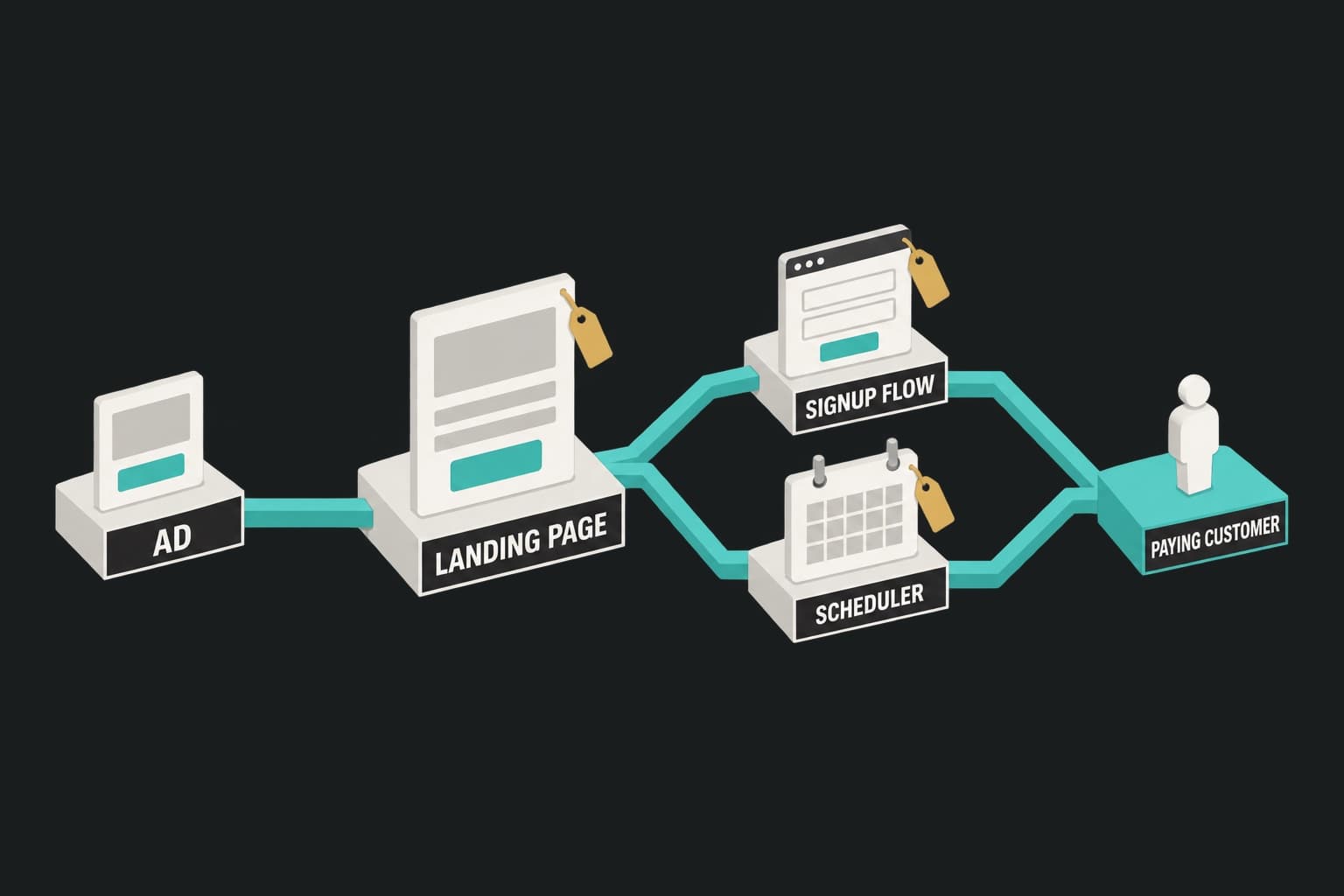
The ad is the promise. The page is the pitch. The offer, the price, the guarantee, the bundle structure, the subscription toggle, the proof placement, the buy box: all of that lives on the landing page, and none of it is in the library. You can spend a week cataloguing a competitor’s hooks and still have no idea how they close.
What to look for on the page behind the ad
When you click through a long-running ad, log these before anything else:
- Page type. Product page, direct-offer landing page, advertorial, listicle, quiz. Brands that scale rarely send cold traffic to a product page; the reasoning is in landing page vs product page for paid ads.
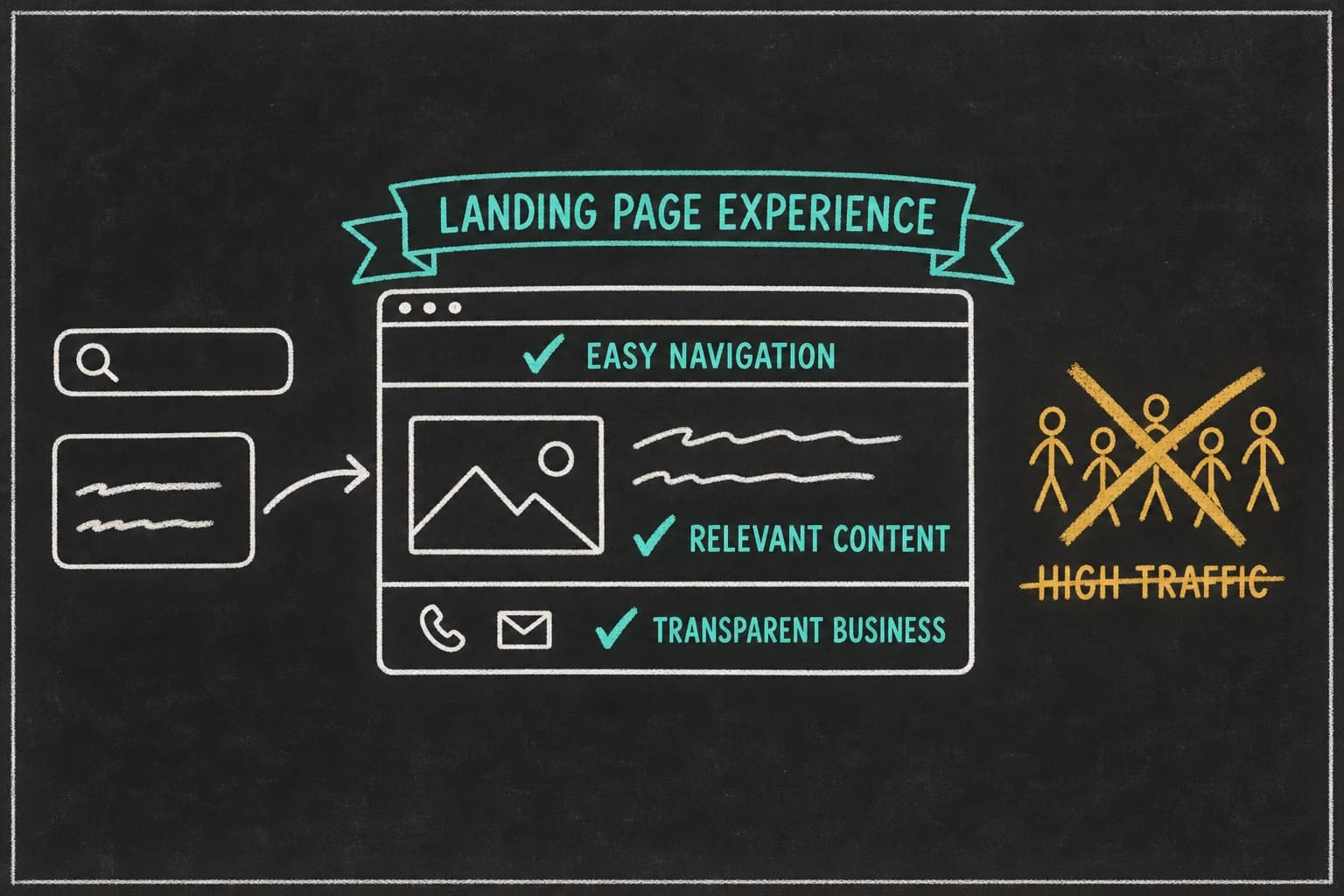
- Message match. Does the headline continue the ad’s hook, word for word or close to it?
- Offer structure. Units, price per unit at each tier, discount framing, free gift, subscription default.
- Price presentation. Crossed-out list price, per-day cost, comparison against an alternative.
- Guarantee. Length, wording, placement.
- Proof placement. Where reviews appear and which objection each one answers.
- Cart mechanics. What happens on add to cart: drawer, upsell, threshold nudge, bundle prompt.
Why manually clicking through doesn’t scale
Clicking through one competitor’s six long-running ads takes 20 minutes and gives you six pages. Doing it for 15 competitors across three markets is a day’s work, and the pages change under you. The library doesn’t archive destinations, so a page you logged last month may be gone, and there’s no way to search pages by offer type, format, or tactic. You can only get to a page through an ad.
That’s the specific, narrow gap. The Ads Library is genuinely good at what it does. It just does the first half.
Closing the loop
The second half is what Pagedeck’s research agent was built for: 1M+ live landing pages, indexed by the Meta ads pointing at them, searchable by niche, offer, brand, or tactic. Instead of clicking through ads one at a time, you filter for pages in your category that have been behind long-running ads and see the full funnel: ad, page, offer, buy box. A watchlist alerts you when a brand on it launches a new page, so you catch the new funnel the week it goes live rather than the month after.
Consider how an agency media buyer, call her Priya, might run this. She manages five DTC accounts and used to spend Friday afternoons in the Ads Library, one brand at a time, pasting URLs into a spreadsheet. The spreadsheet was always a month stale. Now she runs the Ads Library for hooks on Monday, pulls the pages behind the long-running ads from the research library the same morning, and briefs a matched page for each winning angle by Tuesday. The research step went from an afternoon to an hour, and for the first time the pages she builds start from a competitor’s proven structure instead of a blank canvas.
A weekly competitor research workflow
Thirty minutes, once a week. Five steps.
- Pull. Advertiser search for your five to eight core competitors, in your primary market. Filter to active ads, then apply the start date filter.
- Shortlist. Flag every ad running 60+ days, and every ad with 8+ variants. That’s usually three to six ads per brand.
- Read the pages. Click through each shortlisted ad. Log page type, message match, offer structure, and cart mechanics in the swipe file.
- Log the new batch. Note which ads started this week. Check them again next week to see which survived.
- Build. Pick the one angle-plus-page combination you don’t have a match for yet, and build it.
Turning findings into a page you can actually test
Research that doesn’t end in a page is a hobby. The output of the weekly loop should be one new ad-matched landing page in test by the following week. The brands that scale on paid aren’t better at research; they ship more matched pages per research cycle.
Fulton is the cleanest example of what that iteration volume does. The brand put 100% of its paid traffic on dedicated landing pages and iterated more than 50 times. Paid conversion rate went up 110%. Read how Fulton increased paid conversion rate by 110%. The result is Fulton’s; the mechanism is volume.
If the bottleneck between research and page is a copywriter, a designer, and a developer, that’s the bottleneck to remove. Point Pagedeck at the competitor page you shortlisted and it rebuilds the structure with your brand and products, or point it at your own ad and it builds the page that continues that ad’s pitch. Plans start at $49/month for research only; every paid tier includes unlimited pages and traffic.
Frequently asked questions
Is the Facebook Ads Library free? Yes. It’s public, needs no Meta account, and has no usage limit for browsing. Meta’s Ad Library API for researchers has separate access rules.
How do I find a competitor’s ads in the Facebook Ad Library? Set the country, set the category to “All ads,” type the brand name, and select its Page from the advertiser dropdown. If the result is empty, check the country and try the brand’s other Pages.
Can I see how much a competitor is spending on Facebook ads? Not for commercial ads. Spend ranges appear only for social issue, electoral, and political ads. For commercial ads, use “Started running on” dates and variant counts as proxies.
Does the Facebook Ads Library show landing pages? It shows the current destination URL on each active ad, but it doesn’t archive pages or let you search by page. To study the pages behind competitor ads at scale, you need a tool that indexes the pages themselves.
How far back does the Facebook Ad Library go? Commercial ads appear only while active (one year for ads delivered in the EU). Political and issue ads are archived for seven years.
Conclusion
The Facebook Ads Library is free, public, and better than most buyers give it credit for. Search by advertiser, set the country first, read “Started running on” as your spend proxy, and use variant counts to spot the concepts a brand is scaling. Log hooks by pattern, not by brand, so the swipe file answers the question you’ll actually ask.
Then go past the ad. The page is where the offer lives, and it’s the half of competitor research the library was never built to do. Pull the pages behind the long-running ads, log the offer and the buy box, and ship one matched page per research cycle.
Build your first page free, no credit card needed. Start from a competitor page that’s getting spend, or from your own ad, and let Pagedeck build the match.